
User Guide
Chat Application Integration
Quickly import QMSZ configuration into various AI chat applications
QMSZ supports quick configuration import to various AI chat applications for easy testing and daily use.
One-Click Configuration Import
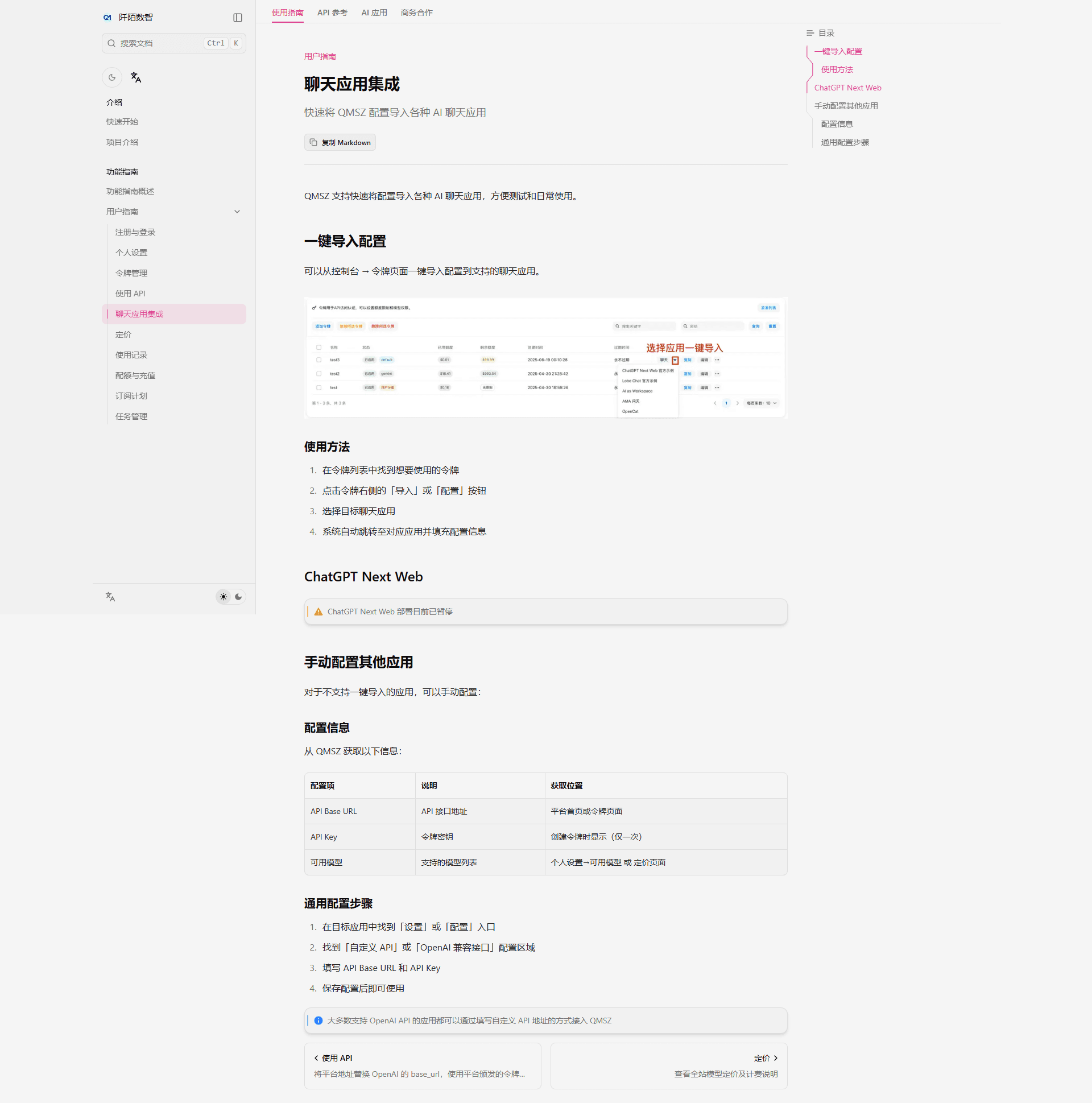
You can import configuration to supported chat applications with one click from the Console → Token page.
How to Use
- Find the token you want to use in the token list
- Click the "Import" or "Configure" button on the right side of the token
- Select the target chat application
- The system automatically redirects to the application and fills in the configuration
ChatGPT Next Web
ChatGPT Next Web deployment is currently suspended
Manual Configuration for Other Applications
For applications that don't support one-click import, you can configure manually:
Configuration Information
Get the following information from QMSZ:
| Configuration Item | Description | Where to Get |
|---|---|---|
| API Base URL | API endpoint address | Platform homepage or token page |
| API Key | Token secret key | Displayed when creating token (only once) |
| Available Models | List of supported models | Personal Settings → Available Models or Pricing page |
General Configuration Steps
- Find the "Settings" or "Configuration" entry in the target application
- Find the "Custom API" or "OpenAI Compatible Interface" configuration area
- Fill in the API Base URL and API Key
- Save the configuration and start using
Most applications that support OpenAI API can integrate with QMSZ by filling in a custom API address